Go quiet
in one click.
Change your Windows power plan and power mode right from the tray. Quiet the fans before a call, then get full speed back the moment you need it.
A powerful laptop that roars on a video call isn't powerful. It's just loud.
I built Power Switcher to fix something that kept bugging me. My laptop would rev its fans even when I was just reading email or sitting on a call, and the setting that controls it is buried deep in Windows.
Pick a plan that turns off turbo boost and the machine settles down almost right away. When you actually want the power back, switch again. The whole thing takes about a second.
Both power settings, one tray menu
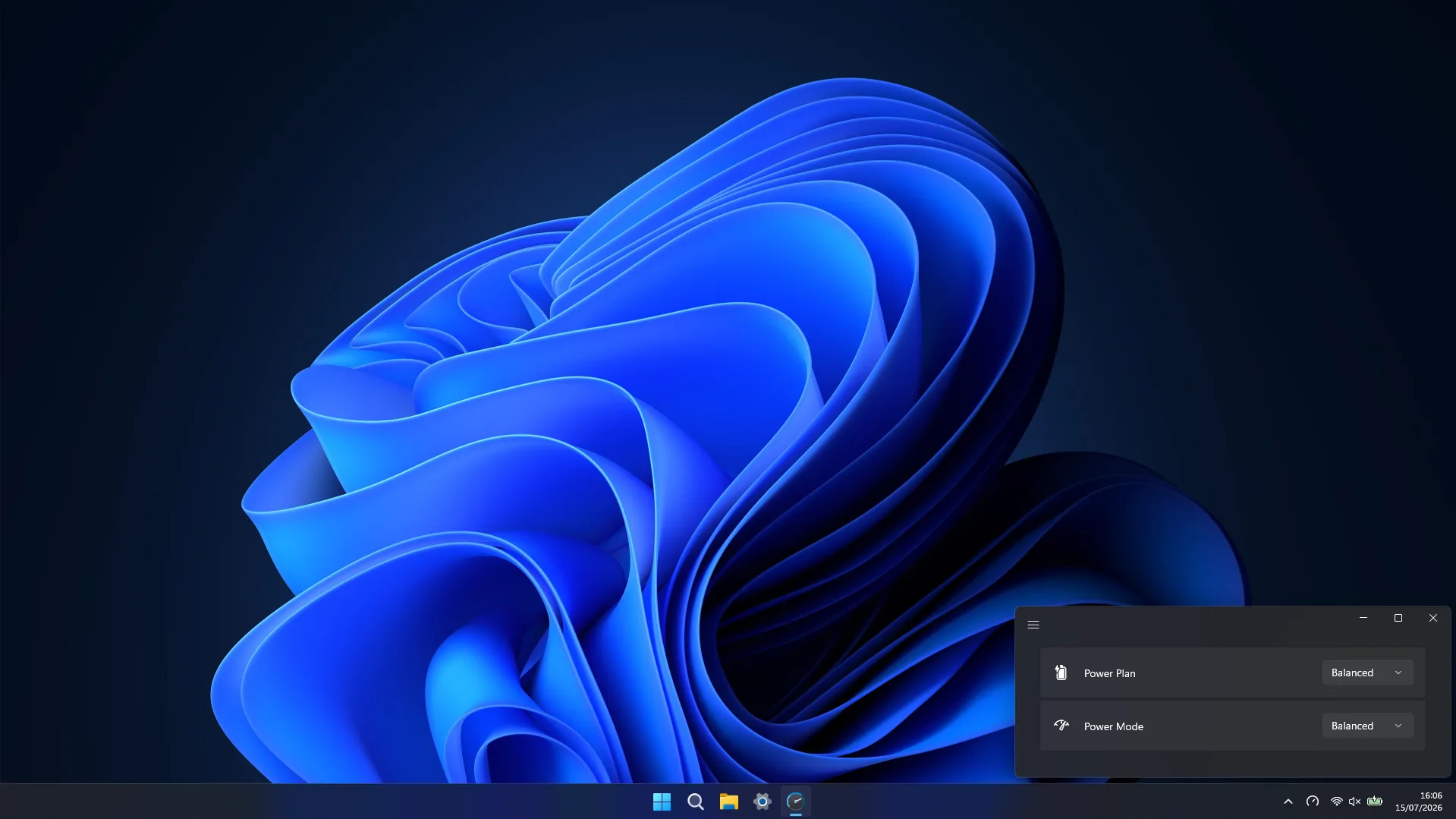
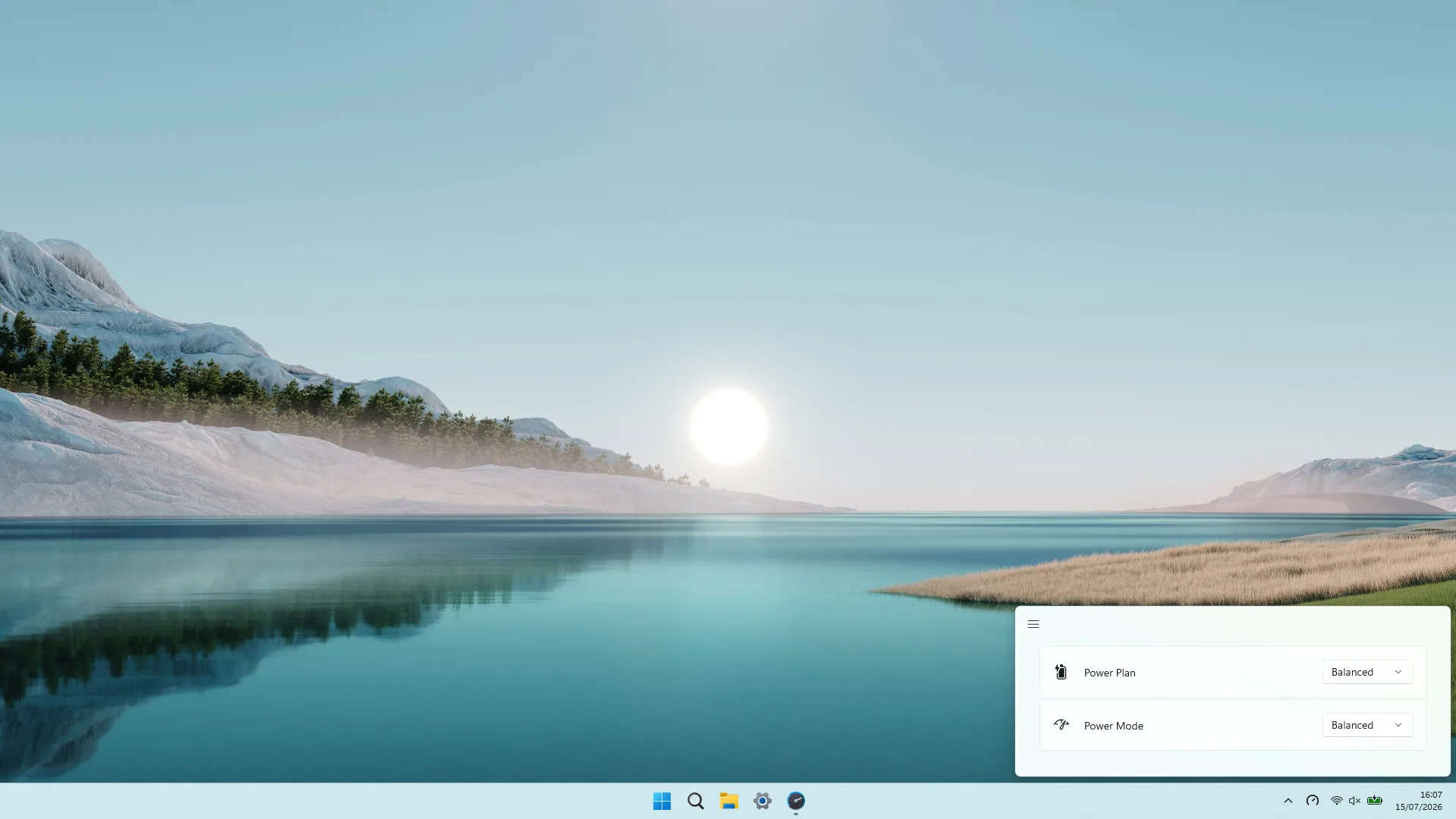
Windows scatters these controls between Control Panel and Settings. Power Switcher puts the ones you actually use in a single menu.
Power modes
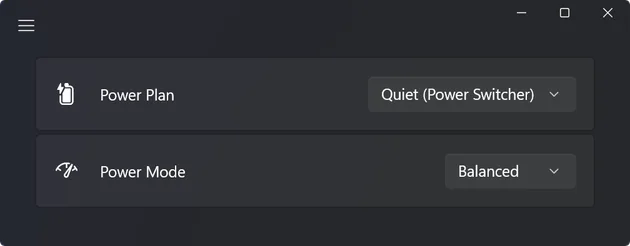
Switch between Balanced, Best Performance, and Best Power Efficiency without digging through Settings.
Power plans
Jump to any of your power schemes, including the quiet no-turbo plan this whole app was built around.
Always a click away
It sits in the tray and stays out of your way. Click the icon, pick what you want, and you're set.
Keyboard shortcuts
Set your own hotkeys for a plan or mode and switch straight from the keyboard, no trip to the tray needed.
A small window, and then it's gone
No dashboard, no background noise, nothing to configure before it's useful.
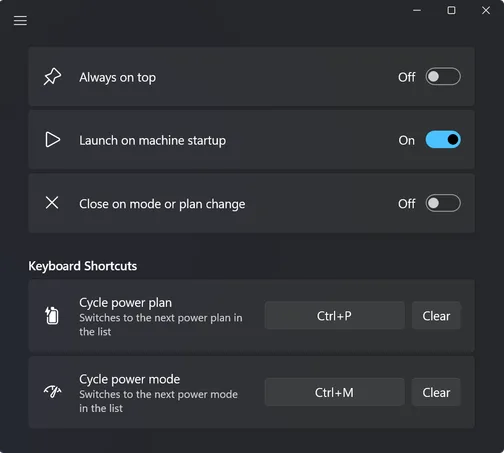
Out of the way
Opens from the tray, does its job in the corner, closes when you're done.
Quiet before the meeting even starts
Click the tray icon
It's down by the clock with your other tray apps.
Pick a plan or mode
Choose your quiet plan or Best Power Efficiency, whichever you set up.
Switch back anytime
Want the speed back later? One more click does it.
Get Power Switcher
It's €4.99 on the Microsoft Store, paid once. No subscription, no account, no upsells.
Get on Microsoft Store (opens in a new tab)Common questions
Which versions of Windows does Power Switcher support?
Will it actually make my laptop quieter?
How do I make a power plan that disables turbo boost?
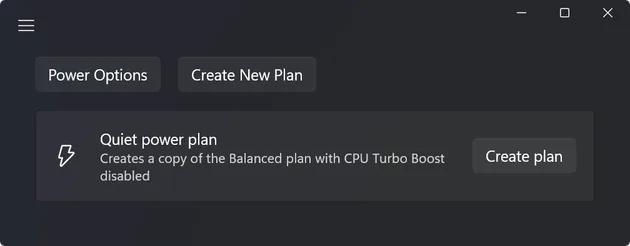
Power Switcher can make one for you. Open the Menu → Power Plans → Quiet power plan and click Create plan. It copies your Balanced plan with CPU Turbo Boost disabled, and the new plan shows up alongside the rest, ready to switch to from the tray.
Prefer to do it by hand? Windows keeps it a little buried, but it only takes a minute. The simplest approach caps the processor just below turbo:
- Open Control Panel → Power Options and click Create a power plan. Start from Balanced and give it a name like “Quiet”.
- Next to your new plan, click Change plan settings, then Change advanced power settings.
- Expand Processor power management → Maximum processor state and set it to 99% (for both On battery and Plugged in).
- Click OK.
Capping the CPU at 99% stops Windows from engaging turbo boost, which is what keeps temperatures and fan noise down. You can also switch boost off directly by unhiding the “Processor performance boost mode” option with a powercfg command and setting it to Disabled — which is what Power Switcher does for you above.